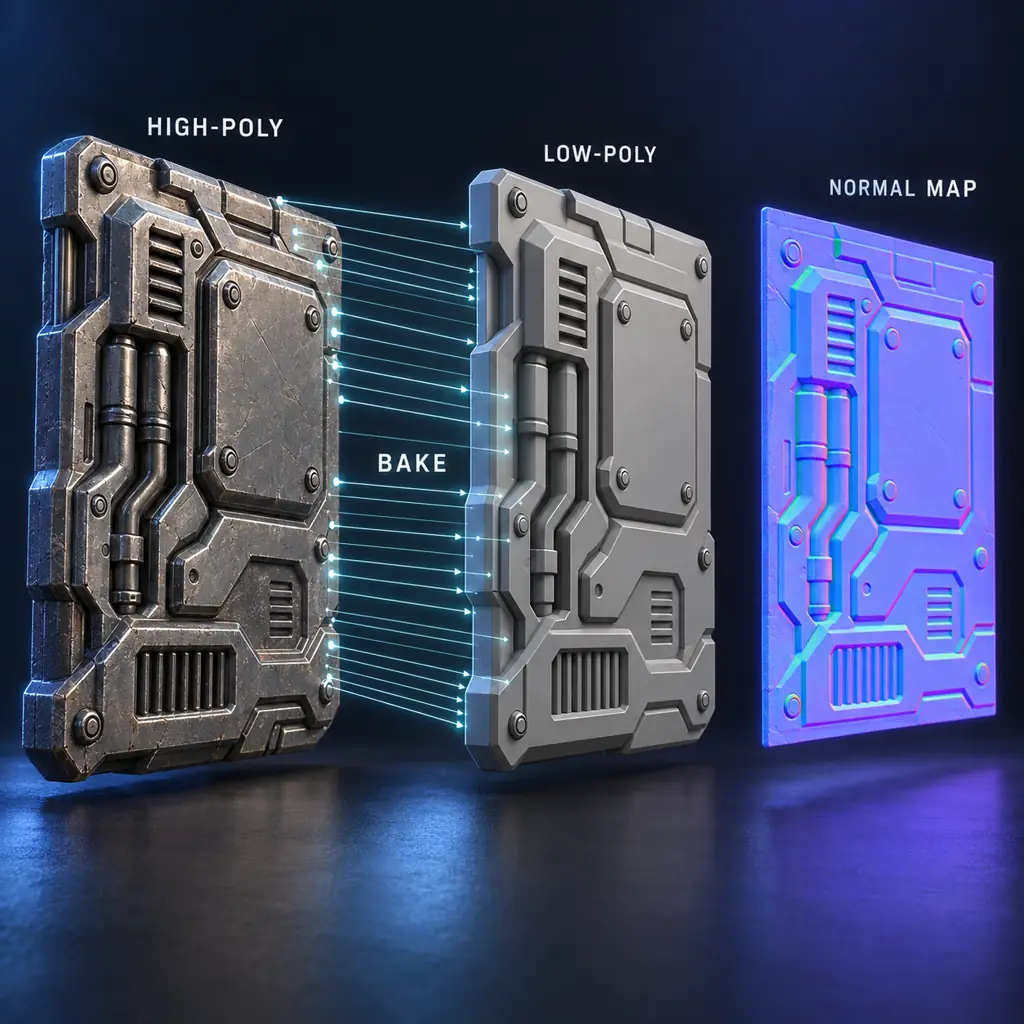
Quick answer
Bake the detail, then validate the shader.
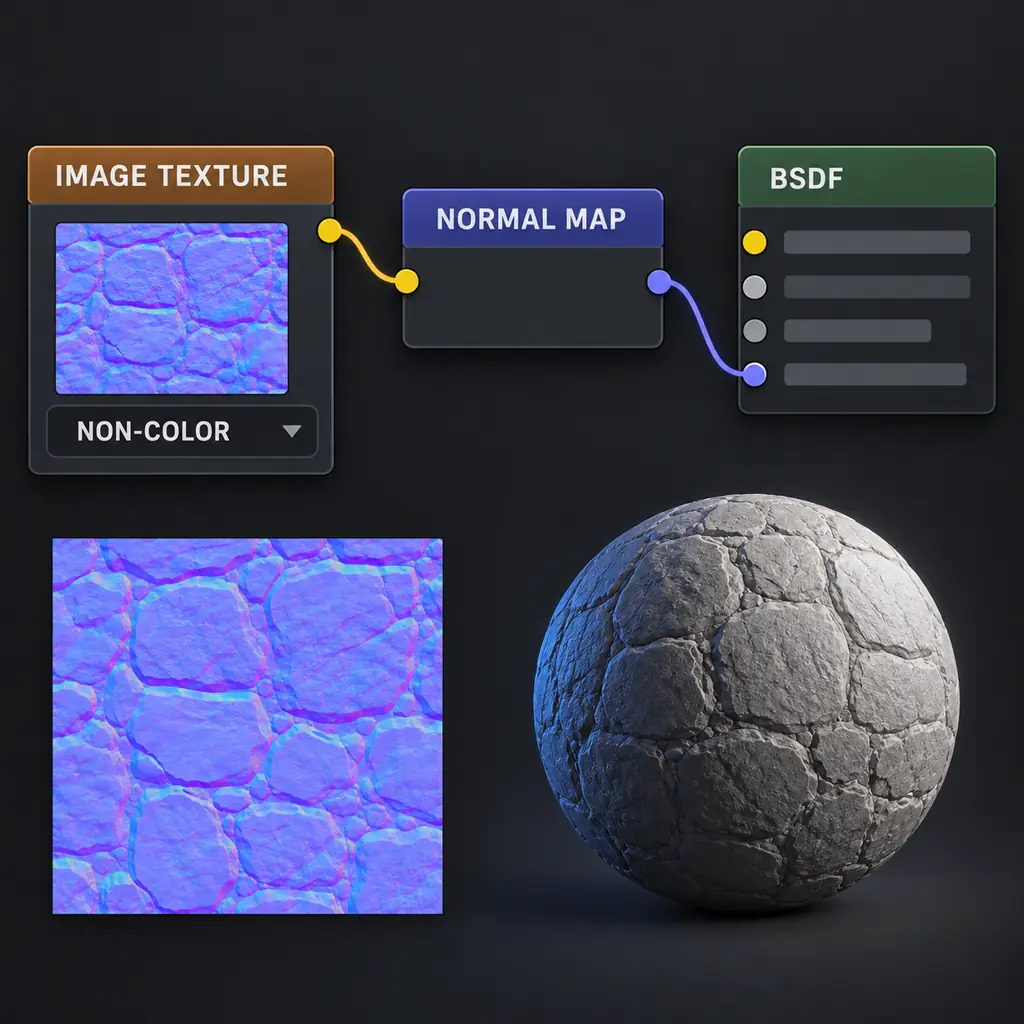
To bake a normal map in Blender, give the low-poly mesh a non-overlapping UV layout, place the high-poly and low-poly objects in the same position, select the high-poly first and the low-poly last, create a blank image in an Image Texture node, enable Selected to Active, set a small Ray Distance or use a cage, and bake Normal in Tangent space. Save the baked image, set it to Non-Color, and connect it through a Normal Map node to Principled BSDF. A successful bake is judged under light in the final material, not by the purple color alone.
A bake transfers the high-poly surface direction into RGB values for the low-poly mesh. It does not repair stretched UVs, missing geometry, a bad cage, or an inconsistent tangent basis. Keep the source blend file and the grayscale or sculpt source so you can rebake when the target scale or renderer changes.
Before you bake
Five checks save more time than another bake.
Apply transforms on both objects, make the low-poly UVs readable, remove accidental duplicate faces, and decide which object owns the material. Use a dedicated image with enough resolution for the final camera distance. A normal map records direction changes, so a high-poly mesh with floating parts or hidden intersections can create dark halos even when the low-poly model looks correct.
Step-by-step workflow
How to bake normal maps in Blender without losing the tangent basis.
1. Prepare and name both meshes
Keep the detailed sculpt or high-poly mesh and the optimized low-poly mesh in the same object space. Apply scale and rotation, check normals, remove hidden intersections, and give the objects unambiguous names such as Chair_High and Chair_Low. If the high-poly parts overlap the low-poly surface, the bake can capture the wrong face or produce a dark seam.
- Apply transforms on both objects.
- Use consistent smoothing and sharp-edge decisions.
- Hide unrelated objects from the bake collection.
2. Unwrap the low-poly target
Only the low-poly mesh needs the final UV layout. Mark seams where distortion can be hidden, unwrap, and leave enough space between islands for the chosen margin. Keep mirrored islands intentional: overlapping UVs are useful for some assets but will overwrite unique detail during a bake.
- Check stretching with a checker texture.
- Keep island padding larger than the final mip bleed.
- Use the same UV map that the material will render.
3. Create the target image and node
In the low-poly material, add an Image Texture node and create a new blank image with the resolution and bit depth you need. Leave the Image Texture node active while baking; Blender uses the active image target for the selected pass. Name it with the asset and channel, for example chair_normal_gl.
- Use a lossless format for the working bake.
- Choose 16-bit only when the pipeline needs it.
- Create one target image per UV set or bake channel.
4. Select high to low and set the rays
Enable Selected to Active in the Bake panel. Select the high-poly object first, then Shift-select the low-poly object last so it is active. Start with a small Ray Distance relative to the mesh scale. A custom cage is safer when the surface is thin, concave, or crowded with nearby parts because it gives the rays a controlled envelope.
- Bake Normal in Tangent space for a typical game material.
- Use a cage when ray projection can hit the wrong surface.
- Increase distance in small steps, never by a large guess.
5. Bake, inspect, and correct one cause
Bake the Normal pass, inspect the image on the low-poly mesh, and rotate a clear key light. Look for waviness, black borders, missing cavities, and reversed grooves. If detail is missing, inspect the cage and ray distance before changing Strength. If only a UV island edge is wrong, fix padding or the seam rather than rebaking the entire source.
- Compare the baked result with a neutral gray material.
- Check front, grazing, and back-facing light.
- Keep a short note of every setting change.
6. Save and wire the final shader
Save the image to the project, reload it if necessary, and set its Color Space to Non-Color. Connect Image Texture Color to a Normal Map node and that node to Principled BSDF Normal. Keep the normal map’s OpenGL or DirectX convention consistent with the renderer that will consume it; if the green channel is inverted, regenerate or flip Y deliberately and document the choice.
- Use the same UV map and Mapping scale as albedo.
- Start Normal Map Strength at 1.000.
- Pack or version the image with the blend file.
Bake quality notes
Make the bake repeatable across assets and renderers.
A cage is more than a larger ray distance. It is a deliberate envelope around the low-poly surface, so each ray reaches the intended high-poly area instead of a nearby panel or interior face. Build a cage when the model has thin walls, layered parts, or tight concave corners. Inspect the cage in orthographic views and keep it close enough to avoid halos.
The tangent basis is part of the baked result. A normal map can look correct in an image editor and still shade incorrectly when the mesh uses different smoothing, hard edges, UV splits, or a different renderer convention. Keep the same UV map and tangent settings from bake to export, and compare the result under a frontal light and a grazing light before changing strength.
Use a small test asset before committing a long bake. A beveled box with one cavity, one hard edge, and one UV seam exposes most projection problems quickly. Bake at the target bit depth, inspect the mip or compressed preview, and verify the material on the final mesh scale. This separates a projection error from a texture-resolution problem.
For a stable handoff, save the image beside the blend file with the asset name, channel, resolution, and tangent convention in the filename or project notes. Record whether the output is OpenGL or DirectX style, which UV map owns it, and whether a custom cage was used. Those details prevent a correct bake from being imported with the wrong green-channel direction.
Rebake when the low-poly topology, UV layout, object scale, or target renderer changes. Do not try to hide a changed silhouette with a stronger normal map. Keep the high-poly source, cage, bake settings, and final image together so a future artist can reproduce the result and compare a new bake against the approved reference.
Recommended settings
Start with conservative values, then test under light.
These values are practical starting points rather than universal defaults. Blender version, mesh scale, render engine, texture resolution, and the target game engine can change the correct choice. Change one variable at a time so you can tell whether the problem came from the cage, UVs, or shader setup.
| Setting | Starting value | Why it matters |
|---|---|---|
| Bake pass | Normal · Tangent | Stores directions relative to the low-poly tangent basis used by the material. |
| Selected to Active | On | Projects the selected high-poly detail onto the active low-poly target. |
| Ray Distance | Small, measured from mesh scale | Too small misses detail; too large catches nearby surfaces and creates halos. |
| Cage | Use for thin or crowded surfaces | A custom envelope gives the rays a more predictable projection than a blind distance. |
| Margin | Padding that survives the final mip | Prevents background colors from bleeding into UV island edges after filtering. |
| Color Space | Non-Color after baking | Normal RGB is vector data and should not receive display-color transforms. |
Troubleshooting
Fix the symptom before raising Strength.
Black seams or dark halos around islands.+
Likely cause: Ray distance or cage reaches unrelated geometry, or the margin is too small.
Fix: Use a tighter cage, hide nearby parts, increase UV padding, and rebake a small test area.
The high-poly detail is missing or softened.+
Likely cause: The cage does not enclose the source, the image target is not active, or the low-poly UVs are wrong.
Fix: Check Selected to Active, the active Image Texture node, cage coverage, and the UV map used by the material.
Grooves look like ridges in the final render.+
Likely cause: The green-channel direction does not match the renderer or the tangent basis changed between bake and import.
Fix: Keep the same tangent convention, test the opposite Y direction, and compare under the same light.
Wavy gradients appear on broad faces.+
Likely cause: The low-poly smoothing, hard edges, UV seams, or source topology disagree with the bake basis.
Fix: Make smoothing and sharp edges intentional, add supporting geometry where needed, and rebake with matching UV splits.
The map looks purple but does nothing.+
Likely cause: The image is treated as color data or is connected directly to Base Color.
Fix: Set Non-Color, route through a Normal Map node, and connect Normal to Principled BSDF Normal.
Questions about baking normal maps in Blender
Do I need a high-poly model to bake a normal map in Blender?+
No. A high-poly to low-poly bake is the most controllable way to transfer sculpted detail, but a grayscale height map or material texture can be converted into a starting normal map when no high-poly source exists. The converter cannot recover hidden geometry, so validate the result in the target material.
What resolution should a Blender normal map use?+
Match the resolution to the visible detail, UV area, and final camera distance. 2K is a common starting point for a hero asset, while repeated or distant materials may need less. Test the final mip and platform compression instead of choosing the largest image by default.
Why does my Blender bake have seams?+
Seams usually come from UV padding, hard-edge and UV-split mismatches, a loose cage, or rays hitting neighboring geometry. Inspect a small crop, tighten the cage, increase margin, and make the low-poly smoothing and UV decisions intentional.
Should a baked normal map use Non-Color in Blender?+
Yes. A normal map stores vector directions in RGB rather than display color. Set the Image Texture to Non-Color and route it through a Normal Map node before the Principled BSDF Normal input.
Should Blender use OpenGL or DirectX normal maps?+
Use the convention expected by the renderer and asset pipeline. Blender commonly uses OpenGL Y direction, while some game pipelines expect DirectX-style green-channel orientation. Test the same material under the same light and document any deliberate Y flip.
Summary
The most dependable Blender normal map bake is a controlled transfer: clean high-poly and low-poly meshes, applied transforms, a deliberate low-poly UV layout, a named image target, a cage or measured ray distance, and a shader that treats the result as Non-Color vector data. If the result looks wrong, compare the same light, UV scale, and tangent-space convention before changing the source sculpt. For a map made outside Blender, continue with the existing Blender import guide; for a grayscale source, use the local height-map converter and then validate the exported PNG in the material.
Official reference
Blender Manual: BakeUse the current Blender manual for Bake settings, Selected to Active, cage behavior, and supported passes.